Click the link below to download the PDF guide:
QLDH Telehealth Web Portal Guide
Platform Requirements
Windows PC
- Web camera
- Speakers or headphones
- Microphone or headset with microphone capability
- Internet Browsers; Google Chrome (recommended), Microsoft Edge and Mozilla Firefox.
- Good Internet connection (at least 3 MBPS)
MacBook
- Web camera
- Speakers or headphones
- Microphone or headset with microphone capability
- Internet Browsers; Google Chrome (recommended) and Safari.
- Good Internet connection (at least 3 MBPS)
Android Tablets
- Forward facing camera
- Headphones
- Microphone or headset with microphone capability
- Internet Browsers; Google Chrome (recommended) and Mozilla Firefox.
- Good Internet connection (at least 3 MBPS)
iPads
- Forward facing camera
- Headphones
- Microphone or headset with microphone capability
- Internet Browsers; Google Chrome (recommended) and Safari.
- Good Internet connection (at least 3 MBPS)
Note: Mobile phones are not allowed
Checking internet speed
To check your internet speed, go to https://speedtest.net then click GO to begin the test. For a good experience you will need at least 3 Mbps for both download and upload.
Sample output:

Checking Headphones and Microphone settings
- Enter the Telehealth Web application link, https://telehealth.health.qld.gov.au/webapp/, in the browser then click SETTINGS.
- When clicked, a pop-up window will appear on the upper left part of the screen and will ask if you will allow your browser to access your device’s Microphone and Camera. Choose “Allow”.
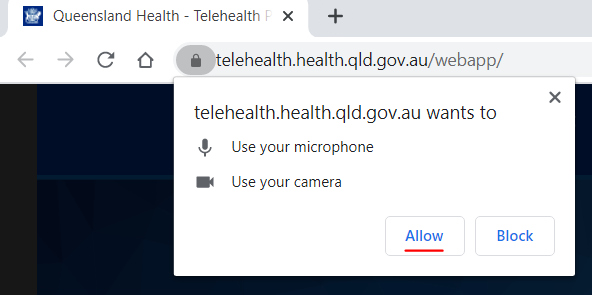
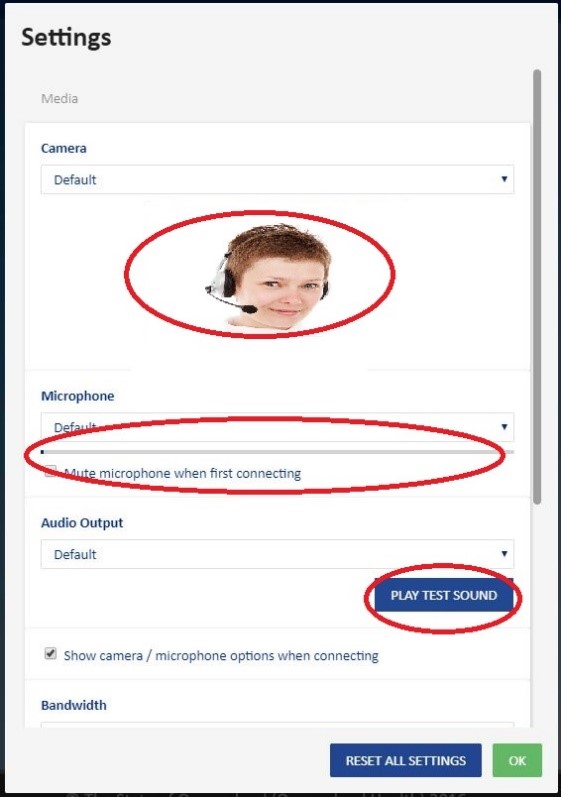
- After allowing, you can now test your Camera, Microphone and Headphones.
- Camera – you should see yourself
- Microphone – when you speak, you should see the bar moving
-
Headphones or Speaker - when you click “PLAY TEST SOUND”, you should hear a tone.
-
Troubleshooting the Microphone and Audio Output
If the sound or microphone are not working, you can click on the down arrow on the Default dropdown. Select the Camera, Microphone and Sound option you are currently using on your device. If there are several devices shown, try each one of them.
- Click OK if all the settings are working.
Accessing and Testing
- Enter this link in your browser: https://telehealth.health.qld.gov.au/webapp/
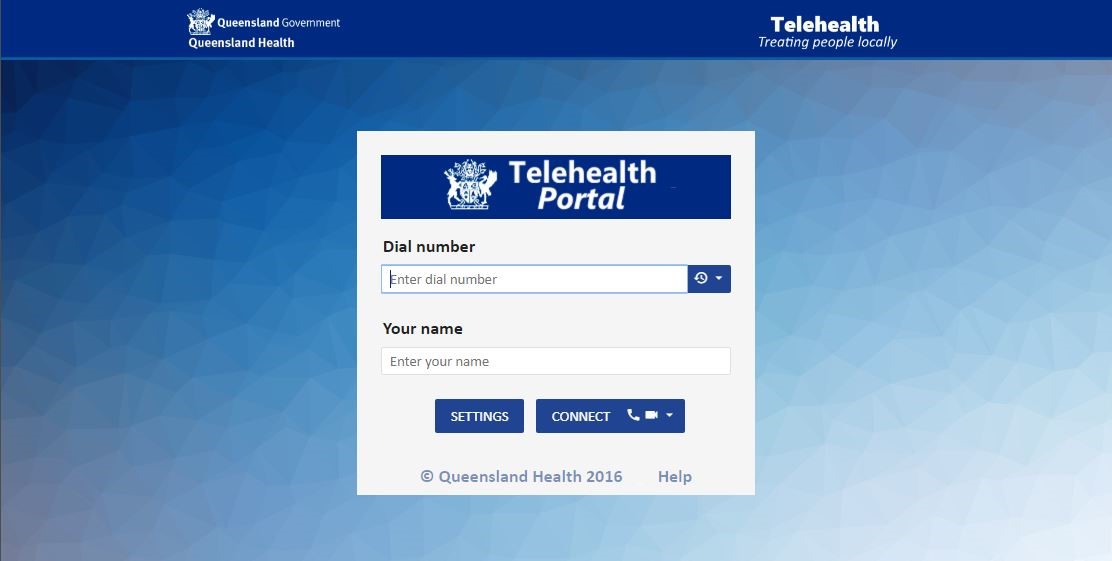
- For testing purposes only, enter This email address is being protected from spambots. You need JavaScript enabled to view it. as the dial number and enter your Full name. Click “Connect” (Connect with Audio and Video). A window will again confirm your Camera and Microphone settings. Click “Start”.
- *For actual assignments, we will provide the Dial Number of your job. Each assignment has a different Dial Number.
-
If connected successfully to the test bridge, you will hear a voice confirming you are connected to the test bridge and will see this in your screen:
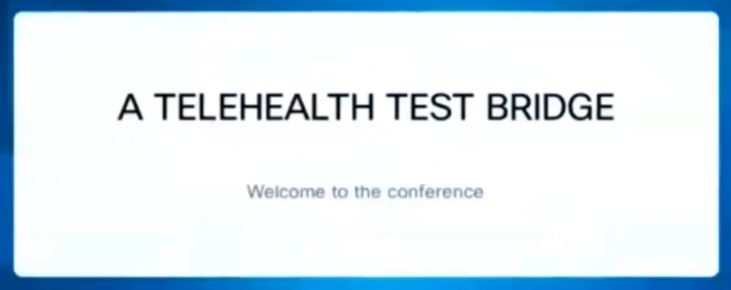
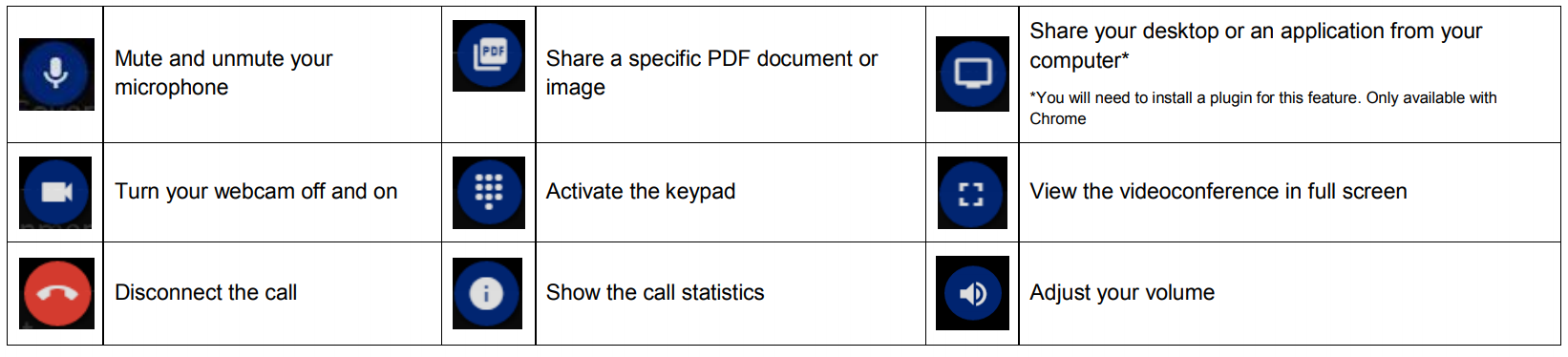
- Disconnect after the test. Click on the Red Button to disconnect and confirm.
Videoconference Controls